How to Lock screen orientation on your iPhone?

Does it drive you nuts to have the iPhone screen flip around when you rotate the phone?

You can prevent this from happening if you have no desire to swap between portrait and landscape view.

To Lock screen orientation on your iPhone:


- Simply choose the orientation (landscape or portrait) you prefer by tilting the device.
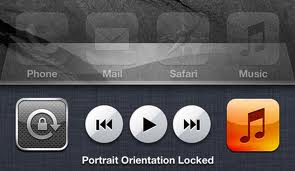
- Then  Double-click the Home button. This will bring up the multitasking interface at the bottom of the iPhone.
- Now swipe from
Left to right and you'll see a "portrait orientation lock" icon at the very left of this string of apps (it has a circular arrow on the icon).
- Tap it once to lock your orientation and you'll see a padlock appear. Turn it off by tapping it again.


How do you feel about this iPhone tips and tricks? Drop your comment below:

How to Find out which apps are taking how much space on your iPhone and delete them?


Beginning with the iOS 5 update, you can see how much space your apps are taking up on your iPhone and delete them from your device — even a bunch at once. 


To do this, tap Settings >> General >>Usage.

From here you'll see a list of all your apps and their file size. You can then select individual apps to get more detailed usage information. This is great because if you’re on the road and in a bind for disk space, you can quickly see what is hogging all the storage capacity and then delete an app or two.


How do you feel about this iPhone tips and tricks? Drop your comment below:

How to Close open apps to save battery life on your iPhone?

Make sure apps you're no longer using are not open and draining the battery.

Do this by double-tapping the Home button and you'll see all the recently used apps running in the background along the bottom of your phone. Press and hold an icon and they'll all jiggle, which means you can tap the (-) to close the open apps at the bottom of your iPhone.


How do you feel about this iPhone tips and tricks? Drop your comment below: